
WiFi & internet
WiFi extender vs mesh WiFi: which is better for your home?
Both can help with WiFi dead spots, but they work differently. Here’s how to tell which suits your home, and when neither is the real fix.
The quick answer
An extender is a cheap, simple way to push WiFi into one or two rooms that are just out of reach. A mesh system replaces or works alongside your router with several matching units that share one network, which usually gives steadier coverage across a whole home.
Neither one makes your internet plan faster. If your internet is slow even right next to the router, more WiFi equipment won’t fix it.
An extender may be enough if…
- Only one room or area has a weak signal.
- That room is not far from where the signal is still good.
- You mostly browse, email or stream on one or two devices there.
- You want the lowest-cost option to try first.
Mesh is usually the better fit if…
- Several rooms, a second storey or the backyard have weak spots.
- You want one network name that works everywhere.
- People move around the house on video calls or streaming.
- You can connect at least one unit with a network cable (a bonus, not a must).
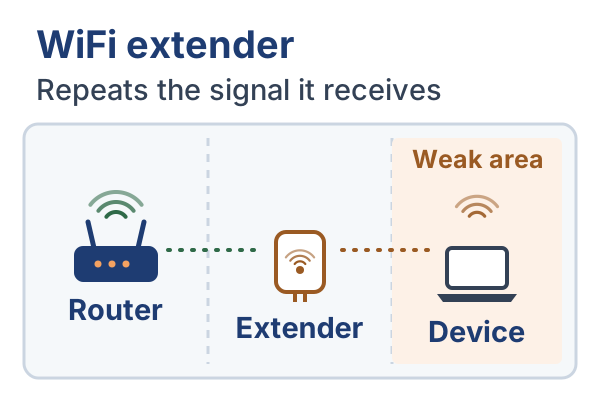
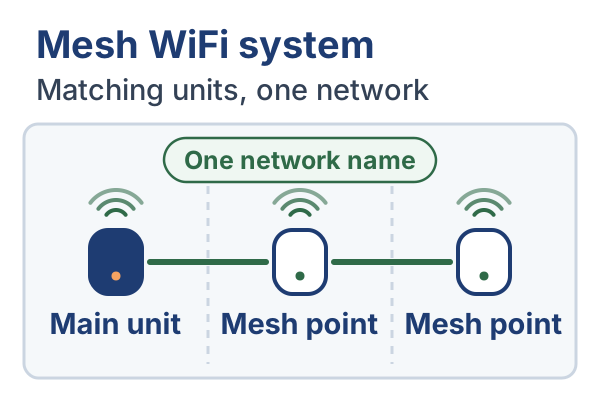
What a WiFi extender does
A WiFi extender (also called a repeater or booster) is a small box, often plugged straight into a power point. It listens to your router’s WiFi and sends it out again, so the signal reaches a little further.
A few things are worth knowing:
- It can only pass on what it receives. If the extender is sitting where the router’s signal is already weak, it repeats a weak, slow signal.
- It may share its airtime. A basic extender uses the same radio and channel to talk to the router and to your devices, so it has to take turns doing both jobs. With this kind of repeating, speeds through the extender can drop to around half of what reaches it. That’s a rule of thumb, not a fixed figure. Dual-band and tri-band models that link to the router on a separate band can lose much less, depending on the model and how it’s set up.
- It may create a second network. Some extenders show up as a separate name, often ending in “_EXT”. Devices can cling to whichever network they joined first, even after you walk back into a room where the other one is stronger.
None of that makes extenders bad. For one patchy bedroom or a study at the end of the hall, a well-placed extender can be a perfectly sensible fix.
What a mesh WiFi system does
A mesh system is a set of two or more matching units (often called nodes or points) from the same manufacturer. One connects to your internet equipment. The others are spread around the home. Together they create one WiFi network with one name and password.
Compared with an extender, a mesh system usually:
- Helps your phone or laptop move to a closer unit as you walk around, without you switching networks. Your device still decides when to switch, so some devices hang on to a further unit for a little while.
- Is managed from a single app, which makes changes and updates simpler.
- Coordinates the units with each other, rather than one box simply repeating another.
The connection between mesh units is called the backhaul. It can be wireless or a network cable. Some mesh systems have an extra radio set aside just for backhaul, which helps keep speeds up. Others share their radios with your devices, much like an extender does.
Extender vs mesh, side by side
This is a general comparison. Features and performance vary a lot by manufacturer, model and the layout of your home.
| Compared on | WiFi extender | Mesh WiFi system |
|---|---|---|
| Coverage | Adds coverage to one nearby area. | Designed to cover a whole home, with more units for larger spaces. |
| Speed | Basic single-radio extenders can lose around half the speed. Models with a separate link to the router lose less. | Usually steadier from room to room. Still limited by placement and your internet plan. |
| Moving around | Devices may stay connected to the weaker signal, or need to switch networks. | One network. The system encourages devices to use a closer unit, but each device decides when to switch. |
| Setup | Plug in, then pair with the router. Placement takes some trial and error. | App-guided setup. May involve changing how your existing router is set up. |
| Cost | Generally the cheaper option. | Generally costs more, and the price grows with the number of units. |
| Best for | One or two problem rooms close to good coverage. | Larger homes, multiple storeys and several weak spots. |
Why placement matters so much
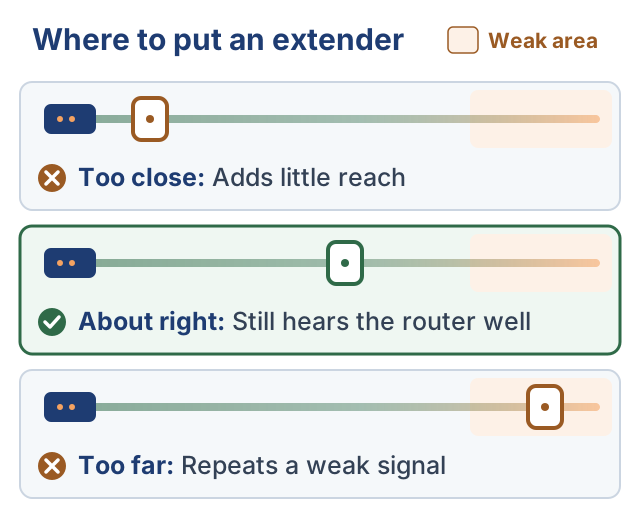
The most common reason an extender disappoints is where it’s placed. It feels natural to put it in the room with the bad WiFi. But by the time the router’s signal reaches that room, it’s already weak, and the extender can only repeat what it hears.
A better spot is usually somewhere in between: close enough to the router that the signal is still good, but near enough to the problem area to help. Many extenders have a light or app that shows how well they’re hearing the router. Use it.
The same idea applies to mesh units and the router itself:
- Keep the router out in the open, ideally central and off the floor. Cupboards, TV cabinets and the back of the house all shrink its reach.
- Thick brick or concrete walls, metal, mirrors, fish tanks and appliances such as microwaves can weaken or interfere with WiFi.
- Place each mesh unit where it still gets a good connection to the one before it, not at the very edge of coverage.
Cables still win: wired backhaul and access points
WiFi has to share the air. A network (Ethernet) cable doesn’t. That is why a cable between your router and a second WiFi unit is usually the most reliable way to cover a difficult home.
- Wired backhaul for mesh. Many mesh systems let you connect a unit to the main one with a network cable. That unit then gets a strong, steady link no matter how many walls are in the way. The Deco X55 can do this — TP-Link calls it Ethernet backhaul.
- A wired access point. An access point is a device that plugs into your router with a cable and creates WiFi where it’s placed. For a granny flat, home office or far end of a long house, it can outperform both an extender and wireless mesh. The RE705X can run in this mode if you can run a cable to it. Dedicated wired access points are still an option for more advanced installations.
- Powerline adapters. These send network data through your home’s power wiring. Results depend heavily on the wiring, so they can be excellent in one home and disappointing in the next.
Is it the WiFi or the internet connection?
WiFi and the internet are two different things. Your internet connection (for most people, the NBN) brings data to your home. Your WiFi is the wireless network that carries it around the house. An extender or mesh system only helps with the second one.
A simple way to tell them apart:
- Run a speed test with a laptop plugged into the router with a network cable, if you can. Otherwise, stand about a metre from the router.
- Run the same test in the room where the WiFi is poor.
- Compare the results, ideally at a couple of different times of day.
- Fast near the router, slow in the far room: it’s a WiFi coverage problem. Placement, an extender, mesh or an access point can help.
- Slow everywhere, even right next to the router: more WiFi equipment won’t fix it. The cause may be your plan, an older router, a fault, or congestion on the connection.
- Dropping out completely for everyone: check the lights on your NBN connection box and modem, and check your provider’s outage page or app.
If the connection itself is the problem, contact your internet provider (the company you pay for your internet) first. They can run tests you can’t, and if the fault is in the NBN network, they’ll raise it with NBN Co for you.
Will it work with your NBN equipment?
This is where buying the wrong thing is easiest. How a mesh system fits in depends on your NBN connection type and the modem-router your provider supplied.
- Extenders generally work with any WiFi router, because they simply join your existing network. Features such as using the same network name vary by model.
- Mesh with your existing router. Many mesh systems can run in “access point” or “bridge” mode behind your provider’s modem-router. Your existing router keeps doing its job and the mesh just provides the WiFi. Some features may be limited in this mode.
- Mesh replacing your router. On many connections (such as NBN Fibre to the Premises, HFC, Fibre to the Curb and Fixed Wireless), the router plugs into an NBN connection box with a network cable, so a mesh system can often take over, as long as it supports your provider’s connection settings. On Fibre to the Node or Building, the router also has to be a VDSL2 modem, which many mesh systems are not.
If you’re not sure which NBN connection you have, your provider can tell you. It’s also usually shown in your account or on your bill.
What usually suits different homes
These are starting points, not rules. The materials in your walls and where your NBN equipment sits matter as much as the size of the home.
Small homes and apartments
A good, well-placed router is often all you need. If you’re having trouble, start with placement, a router restart and any updates. In apartments, neighbours’ WiFi can crowd the airwaves, and devices that support the 5 GHz band may cope better.
Average single-storey homes
If only one room struggles, a well-placed extender is reasonable to try. If the problems are spread out, or the router is stuck at one end of the house, a two-unit mesh system is usually more satisfying.
Larger and multi-storey homes
Mesh is usually the better choice. Place units so each one has a good connection to the last, and use wired backhaul to at least one unit if there’s a practical way to run a cable.
Brick, concrete and awkward layouts
Double brick, concrete slabs, long narrow homes, granny flats and sheds can defeat wireless signals. A cable to a mesh unit or access point, or powerline adapters, often works better than adding more wireless hops.
Rentals
Extenders and mesh units plug in and leave with you, which makes them rental-friendly. Ask before drilling or any cabling, and keep the provider’s original modem in case you need it again.
What equipment should you consider?
If you do need more coverage, these are sensible examples of an extender and a mesh system for Australian homes. They aren’t the only good options. They were chosen on suitability, simplicity and value, using the manufacturer’s specifications, Australian availability and independent reviews. AJP Digital Services hasn’t lab-tested them.
WiFi extender (WiFi 6)
TP-Link RE705X (AX3000)
Suits: One or two rooms with weak WiFi that are still close enough to the router to get a reasonable signal.
Why it’s worth a look
- Plugs straight into a power point, with app-guided setup.
- Has a network port, so it can also work as a wired access point if you can run a cable to it.
- Designed to work with most WiFi routers.
Keep in mind
- Like any extender, it can only repeat the signal that reaches it, so placement matters.
- It can use the same network name as your router without EasyMesh. With an EasyMesh-compatible router, it also gets coordinated mesh features, such as helping devices move to the better connection.
Official specifications for the TP-Link RE705X (AX3000)View on Amazon for the TP-Link RE705X (AX3000) (paid link, opens Amazon Australia in a new tab)
Mesh WiFi system (WiFi 6)
TP-Link Deco X55 (2-pack)
Suits: Homes with patchy WiFi in several rooms. TP-Link suggests the 2-pack for 3 to 4 bedroom homes, but walls and layout matter more than size.
Why it’s worth a look
- One network name across the home, managed in the Deco app.
- Three network ports on each unit, and the units can be linked by cable where you can run one.
- Can replace your router on many NBN connections, or run in access point mode alongside your provider’s modem-router.
Keep in mind
- It’s dual-band, so without a cable between units, the link between them shares airtime with your devices.
- It has no built-in modem. On Fibre to the Node or Building, you’ll keep your provider’s modem-router and use access point mode.
- Deco units only form a mesh with other Deco units. Some security and parental-control features need a paid subscription.
Official specifications for the TP-Link Deco X55 (2-pack)View on Amazon for the TP-Link Deco X55 (2-pack) (paid link, opens Amazon Australia in a new tab)
Details checked 1 November 2026. Models and versions change, so before you buy, check the exact model number, that it’s sold for Australia (Australian plug and RCM mark) and the seller’s warranty. Speeds quoted by manufacturers are maximum link rates, not what you’ll see at home.
Mistakes to avoid before buying more equipment
- Buying before testing. If the internet is slow right next to the router, more WiFi equipment won’t help.
- Putting the extender in the dead zone. It needs a good signal to repeat.
- Hiding the router. Cupboards, cabinets and the garage all cut coverage.
- Expecting mesh to speed up the plan. It improves coverage, not the speed your provider delivers.
- Ending up with several networks. A mix of router, extender and old access points with different names confuses devices. Aim for one network where you can.
- Forgetting older devices. An old laptop or TV may not support newer WiFi standards, and won’t get faster with new equipment.
- Skipping updates. Router, extender and mesh updates can fix bugs and security problems. Check that they’re on.
- Not checking compatibility. Confirm how a mesh system will work with your NBN equipment before you buy.
A quick decision checklist
Work through these in order. Stop when you find the cause.
- Test speed near the router. If it’s slow there, contact your provider before buying anything.
- Move the router somewhere central and open, if your setup allows.
- Restart the router and check for updates.
- Count the weak spots. One nearby room points to an extender. Several rooms, or a second storey, points to mesh.
- Check whether you can run a cable to a second unit. If you can, wired backhaul or an access point is usually the most reliable option.
- Check how the new equipment will work with your NBN connection and provider modem.
- Place new units where the signal is still good, then test again in the problem rooms.
Common questions
Will a mesh system make my internet faster?
It can make WiFi faster in rooms that had a weak signal. It can’t make your internet plan faster than it is.
Can I add an extender to a mesh system?
It’s usually better to add another unit from the same mesh system. A separate extender can work, but it may create a second network and undo some of the benefits of mesh.
Do I still need my provider’s modem-router?
It depends on your NBN connection type and what the modem-router does. If it also runs your home phone, or you’re on Fibre to the Node or Building, you may need to keep it and run the mesh in access point mode.
How many mesh units do I need?
Manufacturers give rough coverage figures, but walls and layout matter more than floor area. Start with what suits your home’s size and add a unit later if one area is still weak.
Is a WiFi booster the same as an extender?
Usually, yes. “Booster”, “repeater” and “extender” are often used for the same kind of device.
Should I just upgrade my router instead?
Sometimes. If your router is several years old or was a basic model, a newer one may cover a small or medium home well on its own. In a larger home, a better router alone may still leave weak spots.
Want to understand your own setup? See how WiFi troubleshooting on the Central Coast works, or browse the other AJP guides.